

Does a person typing documents all day need the same standard keyboard as a colleague entering rows of figures? Often, the answer is no. I would start by matching the board to the work, not by chasing a universal “best” pick.
Typing comfort matters during a long day, while familiar key placement can make routine tasks feel easier. Desk space matters too, especially when a separate number pad takes room beside a mouse. A board that suits spreadsheet work may feel wider than a writer needs.
I’ll offer a practical route from identifying a full-size layout to matching its features to an office routine. The right choice depends on your tasks and setup.
Key Takeaways
- Start with the tasks you do most often.
- A full-size arrangement includes a dedicated number pad.
- A tenkeyless keyboard saves space by leaving out that pad.
- Key labels, layout, and operating system settings should agree.
- Try the typing feel and reach before settling on a board.
What Is a Standard Keyboard?
A full-size standard keyboard is the familiar desktop arrangement that keeps the typing area, navigation keys, and number pad together. It is a useful starting point, but “full-size” describes a complete arrangement, not one fixed key count.
The common office reference has a QWERTY letter area, function row, navigation keys, and dedicated numeric keypad. The IBM Enhanced Keyboard layout has 101 or more keys. Modern US-convention full-size standard keyboard commonly have 104 keys, while 105 keys are common in many other regions.
Full-size means the complete desktop arrangement, not one universal number of keys.
ANSI alphanumeric keys sit on 0.75-inch centers, or about 19 millimeters. That spacing sets a familiar reference for many US keyboards. Other layouts and designs can change the shapes or spacing around individual keys.
A full-size standard keyboard generally includes the alphanumeric section, function row, navigation cluster, and numeric keypad. Some boards add media controls or other keys, so compare the actual key groups rather than counting alone.
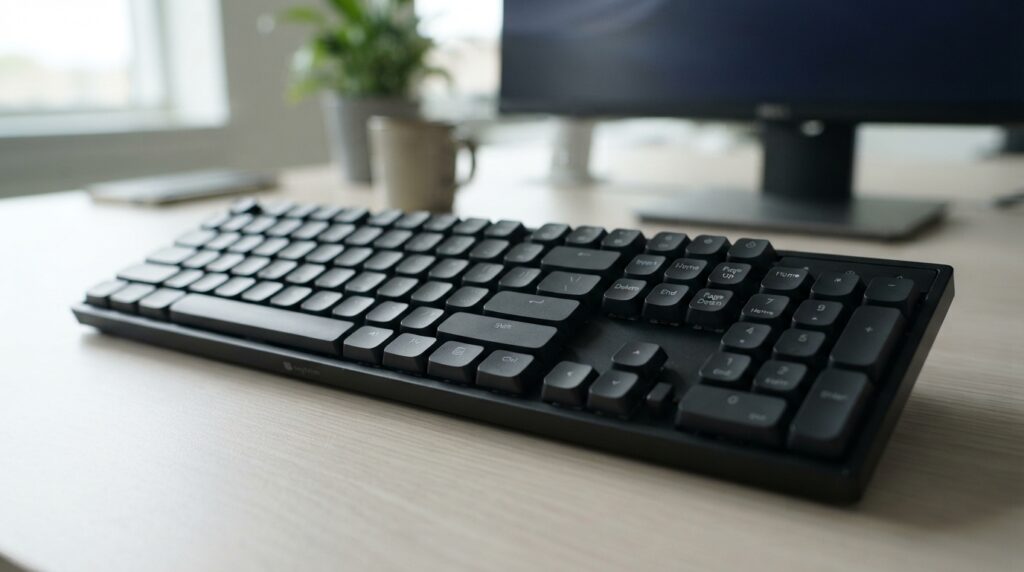

- All-day Comfort: This USB keyboard creates a comfortable and familiar typing experience thanks to the deep-profile keys …
- Built to Last: The spill-proof (2) design and durable print characters keep you on track for years to come despite any o…
- Long-lasting Battery Life: A 24-month battery life (4) means you can go for 2 years without the hassle of changing batte…
With the broad definition in place, I can map where the keys sit on the board.
How Is a Standard Keyboard Laid Out?
Picture the board from top to bottom, beginning with the function row and ending at the wide space bar. This standard keyboard layout places the letter area at center, navigation keys to its right, and the numeric keypad at the far right.
The top edge usually holds F1 through F12. Below it, the number-and-symbol row runs across the letter area. Three rows of letters sit beneath that row, with punctuation keys at the edges and a wide space bar along the bottom.
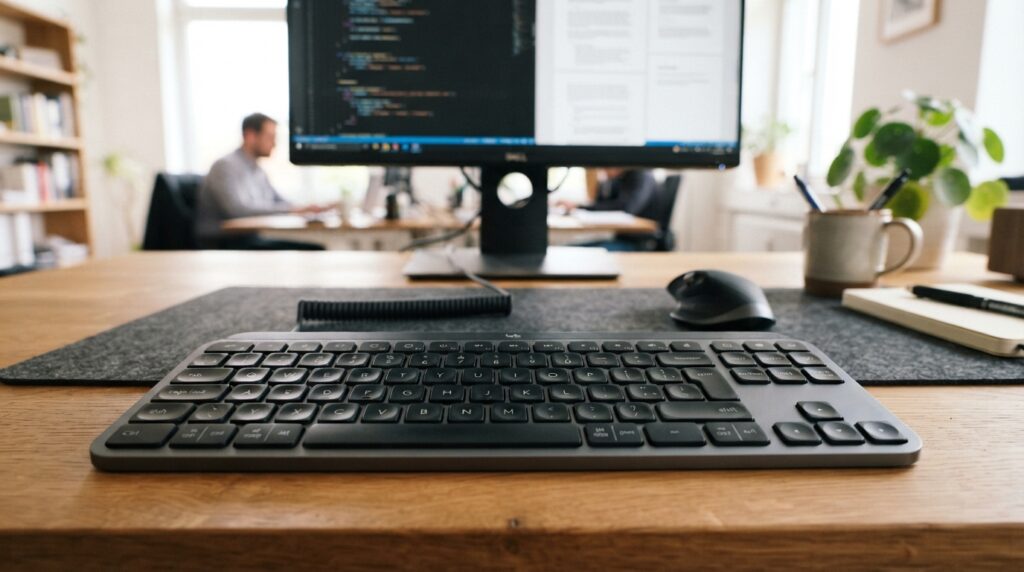

- Fluid Typing Experience: Laptop-like profile with spherically-dished keys shaped for your fingertips delivers a fast, fl…
- Automate Repetitive Tasks: Easily create and share time-saving Smart Actions shortcuts to perform multiple actions with …
- Smarter Illumination: Backlit keyboard keys light up as your hands approach and adapt to the environment; Now with more …
The character-key area
Look from left to right across the center: the letter rows form the main character area. The upper row holds numbers and printed symbols, while punctuation keys sit beside letters. The space bar fills much of the lower center.
A verbal standard keyboard drawing starts at the top left, moves across the function row, then down through the number row and letters. A standard keyboard picture would also show the space bar below the letters, with the navigation cluster beyond their right edge.
The navigation, function, and number-pad areas
On a full-size board, the navigation cluster sits between the character area and numeric keypad. Arrow keys often sit below Home, End, Page Up, and Page Down. The number pad forms a separate block on the right.
The system and modifier keys sit around the character area, often along its lower edge. The table shows each group’s usual position and main role.
| Key group | Usual position | Examples | Main role |
|---|---|---|---|
| Character area | Center of board | A, 5, comma | Enter text and symbols |
| Function row | Across top edge | F1, F5, F12 | Call program actions |
| Navigation cluster | Right of letters | Home, End, arrows | Move through text or screens |
| Numeric keypad | Far right side | 0, 1, plus | Enter numbers and operators |
| System/modifier keys | Lower edge and sides | Shift, Ctrl, Esc | Change input or control actions |
Having located each cluster, turn to the keys used to enter everyday text and punctuation.
How Do Letter, Number, and Punctuation Keys Work?
To type a basic sentence, a user needs the letter keys, punctuation keys, and space bar in the central area. These standard keyboard keys cover most everyday text entry, from a short note to a long report.
The letter keys sit in three rows, with the familiar QWERTY arrangement common on US boards. Above them, the number row pairs each number with a printed symbol. Punctuation keys add marks such as commas, periods, and question marks.
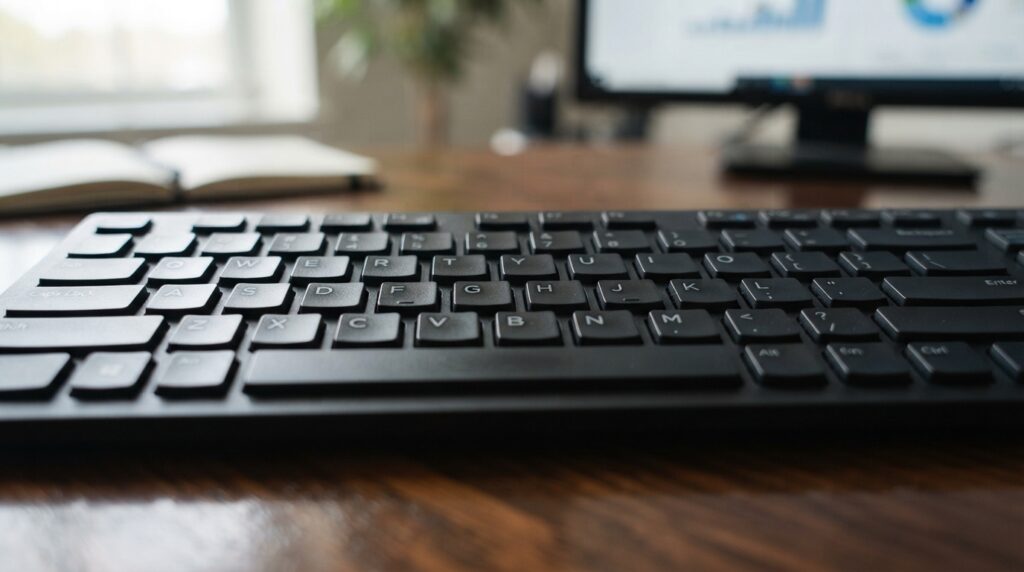

- Durable and Reliable: This USB keyboard features a curved space bar, spill-resistant design (2), durable keys that can w…
- Comfortable, Familiar Typing: You’ll enjoy a comfortable and familiar typing experience thanks to the deep-profile keys …
- Full-size Sculpted Mouse: The high-definition optical USB mouse puts comfort and control in your hands with smooth, accu…
The space bar separates words, while punctuation marks help make their meaning clear. A date may use number keys and a slash. An email address needs letters, a period, and the at sign.
- Sentence: use the letter rows, space bar, and punctuation keys.
- Date: use the number-and-symbol row and slash key.
- Email address: use letters, period, and at sign.
- Special character: use the symbol printed above a number.
For example, typing a capital A means pressing Shift with A. The same Shift key can produce the symbol printed above a number, such as an exclamation point above 1.
Not every character appears as a separate key. Some characters require a second key press in combination, leading into modifier keys.
How Do Modifier Keys Change What Other Keys Do?
Holding Shift while pressing a letter changes its output from lowercase to uppercase. Shift can also produce the upper symbol printed on a key, so one physical key offers more than one character.
Modifier keys typically work with another key rather than entering a character alone. Ctrl and Alt often pair with another key to trigger a command in a program. The exact result depends on the software and operating system.
For example, a program may use Ctrl with another key to save a file. A different program can assign another action to that same combination. I would check commands in the software used for daily work.
Windows keyboards commonly have Windows keys. Apple keyboards use Command and Option labels for comparable shortcut roles. The exact behavior varies with the operating system and program, so the labels alone do not promise one result.
Modifiers change another key’s output or action; they usually do not type by themselves. From there, it helps to distinguish combinations from dedicated function and system keys that can act without typing a character.
What Do Function Keys and Special-Purpose Keys Do?
Pressing F1 in many programs opens help, while the same key may do something different in another application. Function keys call program actions without requiring a long command, but software and system settings affect their behavior.
Many full-size keyboards place F1 through F12 in a row along the top. A program may use them for help, editing, or other tasks. Some boards combine them with media controls, so a secondary action may need another key.
Function keys across the top row
The printed F-number identifies each function key, but does not guarantee its action. F1 commonly opens help in many programs. Other keys may act differently by application or system setting.
System and special-purpose keys
Esc often closes a menu or stops an action. Enter confirms a choice or starts a new line. The Windows key can open system features, depending on settings and the program in use.
Print Screen commonly copies a screenshot to the clipboard on modern systems. Scroll Lock and Pause/Break have limited or program-specific uses today. These special keys can vary in effect, so their labels are not a promise of one universal action.
- Esc: close an open menu or cancel a dialog.
- Enter: submit a search or confirm a selected option.
- Print Screen: copy a screenshot to the clipboard on many modern systems.
- Scroll Lock: change scrolling behavior in programs that support it.
The examples show why a key’s purpose can depend on the task. Send attention to the navigation cluster for keys whose main job is moving through text or a screen.
Which Keys Move the Cursor Around a Document?
To fix a typo near the start of a long line, the arrow and Home keys can move the insertion point without reaching for a mouse. These navigation keys offer direct movement through text and screens.
The arrow keys move the text cursor up, down, left, or right. Home usually moves to the start of a line, while End moves to its end. The exact behavior can change with the program or document type.
Page Up and Page Down move through a page or screen in larger steps. That often scrolls the view without placing the insertion point at every line. The cursor marks where new text will appear; scrolling changes what is visible.
For a practical edit, place the cursor in a line, use Home to reach its start, then move toward the typo. This can be faster than clicking near a small character with a mouse.
Navigation keys may form a distinct cluster on a full-size board. Compact devices can combine them with other keys or arrange them differently, so check their placement if frequent editing matters.
A separate numeric keypad supports another work pattern, especially for tasks with many figures.
When Is a Numeric Keypad Useful?
Entering a column of figures repeatedly is often easier with a dedicated number pad than with the number row above the letters. The numeric keypad gives number-heavy tasks a separate group of keys for data entry and calculations.
A numeric keypad is commonly positioned on the right side of a full-size keyboard. Its number keys sit in a compact grid, with arithmetic operators nearby. That layout can help when entering many values in a spreadsheet or calculator.
The number row above the letters remains useful for short entries, dates, and mixed text. For repeated figures, the keypad offers a dedicated pattern that does not require reaching across the letter area each time.
Num Lock changes whether keypad keys enter numbers or provide navigation functions. With number entry on, the keys type digits. With it off, some keys can act like navigation controls, depending on the keyboard and program.
To decide whether the added desk width earns its place, track one ordinary workday. Note how often you enter several numbers in a row, then consider whether the keypad would make those tasks easier.
Key legends and familiar character placement can vary by country, even on a board with a numeric keypad.
How Do Keyboard Layouts Differ by Country?
A keyboard bought for US typing may not place every symbol where a user expects on a layout made for another country. Keyboard layouts by country can change physical shapes, printed legends, or the letter arrangement itself.
ANSI, ISO, and JIS are common full-size physical layout families. ANSI is associated with US conventions, ISO with many European conventions, and JIS with Japanese conventions. These names describe physical arrangements, not only the characters printed on the keys.
ANSI, ISO, and JIS physical arrangements
Physical layout affects key shapes and positions. A key that is wide on one board may be narrower or placed differently on another. That can change how familiar the keyboard feels, even when the letter rows look similar.
Country-specific keyboard layouts may use different legends for symbols. The operating system’s chosen layout also affects which characters a key press produces. Check both the keycaps and the computer’s language setting.
QWERTY and regional letter layouts
QWERTY is common in the United States, but it is not the only letter arrangement. Germany commonly uses QWERTZ, while France commonly uses AZERTY. The letters and symbols may sit in different places.
| Layout family or example | Common association | What may look different | What to check |
|---|---|---|---|
| ANSI | US conventions | Long horizontal Enter key | US symbol positions and language setting |
| ISO | Many European conventions | Tall Enter key and extra key near left Shift | Regional legends and key placement |
| JIS | Japanese conventions | More keys and Japanese-specific legends | Japanese input support and key labels |
Once the arrangement fits the user, compare the physical size and number of keys needed at the desk.
What Keyboard Size Fits an Office Desk?
Measure the open desk area first, because the same full-size layout can feel roomy on one desk and crowded on another. A keyboard’s footprint should leave usable room for a mouse and other daily tools.
A full-size board keeps the complete key groups, including a numeric keypad. As a general rule, it is about 43-46 centimeters wide and 13-15 centimeters deep before a separate wrist rest. Product shapes vary.
Full-size keyboards for a complete key set
Full-size keyboards suit desks with enough open space for the complete arrangement. Their width depends on key spacing, borders around the keys, and added controls. Measure the board itself rather than relying on its size label.
Tenkeyless boards without the number pad
A tenkeyless keyboard is a full-size keyboard without a dedicated numeric keypad. It typically measures about 36-38 centimeters wide, though key spacing, bezel, and design affect the final size. Removing the pad leaves more side-to-side desk room.
Compact boards for limited desk space
Compact boards remove or combine more keys and clusters to shrink their footprint. Some lack dedicated function or navigation keys. Check the exact arrangement, since compact does not describe one fixed size.
| Form factor | Typical width | Typical depth | Key tradeoff |
|---|---|---|---|
| Full-size | About 17-18 inches (43-46 cm) | About 5-6 inches (13-15 cm) | Keeps the numeric keypad and full key groups |
| Tenkeyless | About 14-15 inches (36-38 cm) | Varies by model | Removes the dedicated numeric keypad |
| Compact | Narrower than full-size | Shallow, model dependent | Combines or omits several key groups |
For standard keyboard size in cm, these ranges are a starting point, not a fit guarantee. Measure the keyboard’s actual width and depth, then compare them with the clear desk space you can use.
After choosing a footprint, compare the key mechanisms that determine how typing feels.
Which Key Mechanism Feels Best for Office Typing?
Two keyboards can share the same key layout yet feel very different under the fingers. The best mechanism is personal: the right choice depends on preferred travel, sound, and the kind of typing done each day.
Membrane keyboards use layers beneath the keys to register a press. Many use rubber domes that collapse under pressure. These boards often have a softer feel, though the sound and key travel vary across models.
Membrane and rubber-dome keys
Membrane or rubber-dome keys can feel quiet and soft. Some have a shorter or less distinct press than other designs. For a shared office, sound may matter as much as the feel under the fingers.
Mechanical and scissor-switch keys
Mechanical keyboards use a separate switch under each key. Their travel, sound, and tactile response depend on the switch and board. Some are loud, while others are designed for quieter typing.
Scissor-switch keys use a stabilizing mechanism beneath a low-profile keycap. Many laptop-style boards use this design. It can offer shorter travel, but the exact feel still varies from one model to another.
| Mechanism | How the key is supported | Typical feel or sound | What to consider at work |
|---|---|---|---|
| Membrane/rubber dome | Layered membrane or collapsible dome | Often soft, with model-dependent sound | Try the press depth and noise in your workspace |
| Mechanical | Separate switch beneath each key | Travel and sound vary by switch | Check noise, key feel, and switch options |
| Scissor switch | Scissor-shaped support beneath low keycaps | Low profile and often short travel | Check whether the shallow press suits long typing |
Maintenance needs also differ by model. A removable keycap may make some cleaning tasks easier, while other boards call for careful surface cleaning. Follow the maker’s care instructions rather than assuming a mechanism guarantees easy upkeep.
Keyboard layout types can mean physical key arrangement or key mechanism. I use “layout” for key placement and “mechanism” for how a press feels. Connect that chosen feel to the connection and compatibility details needed at a workstation.
Which Connection and Compatibility Details Matter?
A keyboard only saves time when its connection works with the computer and the characters it enters match the user’s settings. Compatibility comes first: check the operating system, language layout, available ports, and any required software.
Modern USB and wireless keyboards commonly support plug-and-play connection. A wired USB board avoids battery changes but adds a cable. Check that the computer has a usable USB port and enough cable reach.
Wireless models may use Bluetooth or a 2.4 GHz receiver. Bluetooth needs a computer that supports it. A receiver-based board needs an open port for its small receiver, which can be easy to overlook.
Keyboard mapping is the software association that determines which character or action a physical key press produces. Displayed legends may not match the characters produced if the operating system uses another layout.
Check the connection type, computer support, language layout, and any software needed for extra controls. Some keyboards work without added software, while special features may depend on it.
With compatibility checked, consider how the board and typing posture feel through a full workday.
How Can I Make Office Typing More Comfortable?
A comfortable office setup lets the user reach the keys without lifting the shoulders or bending the wrists sharply. I would aim for relaxed reach, with the board close enough to use without leaning forward.
Position the keyboard so the shoulders can stay relaxed and the wrists remain fairly straight. Avoid forcing the hands into a sharp angle. A change in keyboard height or distance can affect how the hands reach the keys.
Position the keyboard and hands
Keep the board within easy reach, then place the mouse where the arm does not need to stretch far. A wrist rest may change the height or feel of the setup, so judge the whole arrangement rather than one accessory.
Match key feel and visibility to the workday
When possible, try the key spacing, travel, and sound in person. Check whether the legends are easy to see in the room’s light. A board that feels fine for a quick note may not suit a long report.
Use a realistic task for a quick comfort check:
- Hand position: type a few lines and notice wrist and shoulder tension.
- Mouse reach: switch between typing and mouse use without stretching.
- Label visibility: read common legends under normal office lighting.
- Workday task: try several minutes of a task you often perform.
Comfort varies from person to person, so no single keyboard suits everyone. Persistent pain calls for professional advice rather than relying on a keyboard change alone.
Translate these comfort checks into the different demands of writing, spreadsheets, and mixed office work.
Which Keyboard Features Fit Different Office Tasks?
A spreadsheet-focused worker and a writer may value different keys even when they use the same office computer. I would match the board to the main task, not to a broad label such as office use.
Document-heavy work often depends on familiar letter placement and navigation keys. A writer who edits long passages may value direct access to Home, End, and the arrow keys. A number pad may matter less.
Frequent spreadsheet entry can make a dedicated numeric keypad useful. A compact footprint may help someone who moves often between a browser, email, and a limited desk area. Mixed work usually benefits from the key groups used most often.
Full-size remains a common desktop choice when users want a number pad and complete key groups. Preferences vary, and some people choose a smaller board to gain desk room or bring the mouse closer.
- Writing: focus on familiar letters and easy document navigation.
- Spreadsheets: consider a dedicated number pad and clear number keys.
- Email and browser work: weigh common shortcuts against desk space.
- Mixed tasks: keep the key groups used throughout the day close at hand.
Use those task priorities to build a short, evidence-based checklist before buying.
What Should I Check Before Choosing a Standard Keyboard?
Before choosing, write down the three tasks that occupy most of the workday and compare each keyboard against them. That gives “best” a clear test: whether the board supports real work and fits the desk.
Compare the actual key groups and feel, not just a product label. A compact keyboard can be the better choice when desk space is limited and number entry is infrequent. A full-size board may fit better when complete key groups matter.
Use this six-point checklist to narrow the options:
- Layout and language: match key legends to the layout you use.
- Footprint: choose full-size, tenkeyless, or compact based on desk space.
- Number pad: decide whether your regular work needs one.
- Feel and sound: test the keys in a setting like your workplace.
- Connection and operating system: check support and any needed software.
- Return or trial terms: check them when you may need time to test the board.
Each choice should match a task you actually do, rather than a generic “best” label. A keyboard that looks complete on paper may still place a frequently used key too far away.
If a return period or in-store trial is available, use it for ordinary work, not just a few test presses. Check the feel during a typical document, data entry task, or mix of browser work.
End the selection process by learning how to keep the chosen board clean and working reliably.
How Can I Keep My Keyboard Dependable at Work?
A key that appears to type the wrong character may reflect a changed language setting rather than a broken keyboard. I would check the simple causes before assuming damage, since several issues can resemble a faulty key.
Routine care starts with the manufacturer’s cleaning instructions. Disconnect or power down the keyboard before cleaning, and avoid excess liquid. Not all keyboards tolerate spills, so keep drinks away from the keys.
Check the language setting and connection before treating a strange character as a broken key.
Crumbs can block a key or affect its movement. A spill can cause damage, while an accidental layout change can make a key produce an unexpected character. Follow the maker’s guidance for cleaning rather than applying liquid directly.
When input behaves unexpectedly, check the cable or wireless connection first. Then confirm the operating-system language setting and the state of any lock key that could affect input.
If only one key fails after these checks, a physical issue may need attention. Keep the choice focused on the layout and features that best match the reader’s actual work.
Conclusion
For many office setups, the simplest starting point is to decide whether a dedicated number pad earns its desk space. A full-size layout is sensible when the number pad and complete key groups matter, while a smaller board can suit limited desk space.
The right choice depends on the work mix and the feel that stays comfortable through a typical day. No one size fits every desk or routine.
Measure the open desk area, then test one layout and key feel against a typical work task before choosing.