
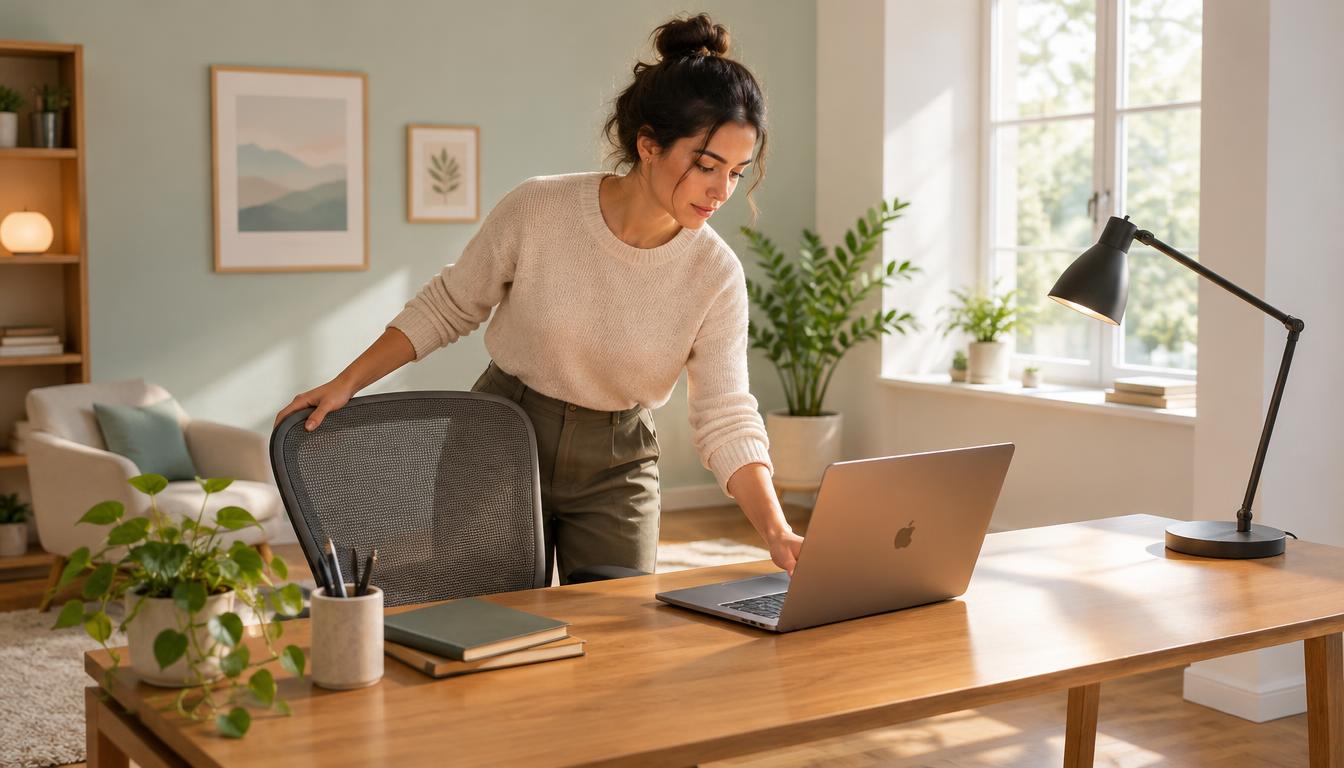
What helps you stay focused when home life and work share the same room? A useful remote work setup combines comfort, reliable access to work tools, and a place where you can focus. Your needs depend on your role and whether you work at home, in a shared space, or while traveling.
Reliable connectivity helps you join calls and reach files, while useful technology supports the tasks your job requires. A comfortable work area can make a long day easier to manage. Clear boundaries also help separate work from personal life, especially when people share your space or distractions compete for your attention.
Two-factor authentication is a sign-in method that requires a second identity check in addition to your password. Start with the physical work area, then choose the technology that supports it.
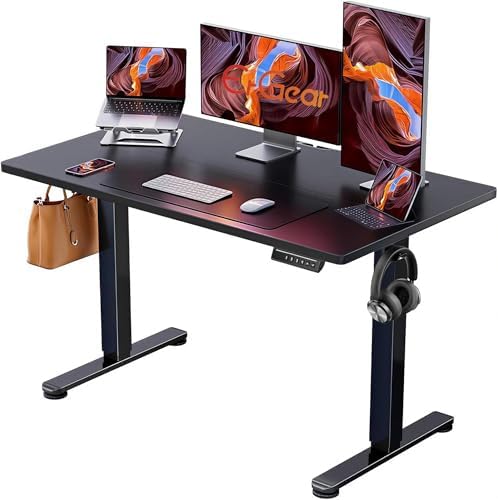
- Electric Height Adjustable Standing Desk for Comfortable Work – Switch effortlessly between sitting and standing with th…
- Powerful Motor with Memory Presets – Equipped with a quiet, powerful lift motor, this sit stand desk allows seamless adj…
- Exceptional Stability Steel Frame – Built with a heavy-duty alloy steel frame and aerospace-grade lifting columns, this …
Key Takeaways
- Match your work area to your tasks and available space.
- Adjust your desk and chair to support a comfortable posture.
- Choose technology that solves a real work problem.
- Test your connection where you plan to work.
- Use clear boundaries to protect focus and personal time.
- Make one useful change before adding more equipment.
How Do You Arrange Your Desk and Chair for Comfort?
Looking down at a laptop for hours can strain your neck and shoulders. A few position changes can improve comfort without replacing all your furniture.
Raise the screen only when separate input devices let your hands stay relaxed. A higher display can create a new strain if you must reach for the keyboard.
Set screen, keyboard, and mouse positions
Keep the top of your monitor at or just below eye level. A laptop stand or riser can raise the screen, while an external keyboard and mouse let your arms stay relaxed.
Raising a screen without external input devices can leave your hands reaching or hovering. Keep the keyboard and mouse close enough that you do not need to stretch toward them.
Fit your chair and desk to your body
Set your chair so your feet rest flat on the floor or on a footrest. Aim for elbows bent about 90 degrees while typing, with relaxed shoulders and wrists aligned with your forearms.
Use a chair with lower-back support, and adjust its height to fit your desk. The right furniture should support your body rather than force you into one position.
Check these five details before settling into your home office:
- Screen height at or just below eye level
- Lower back supported by the chair
- Feet supported on the floor or a footrest
- Elbows near 90 degrees while typing
- Keyboard and mouse within easy reach
A good posture helps, but staying still all day can still feel tiring. Change positions when you can and take short movement breaks during long work periods.
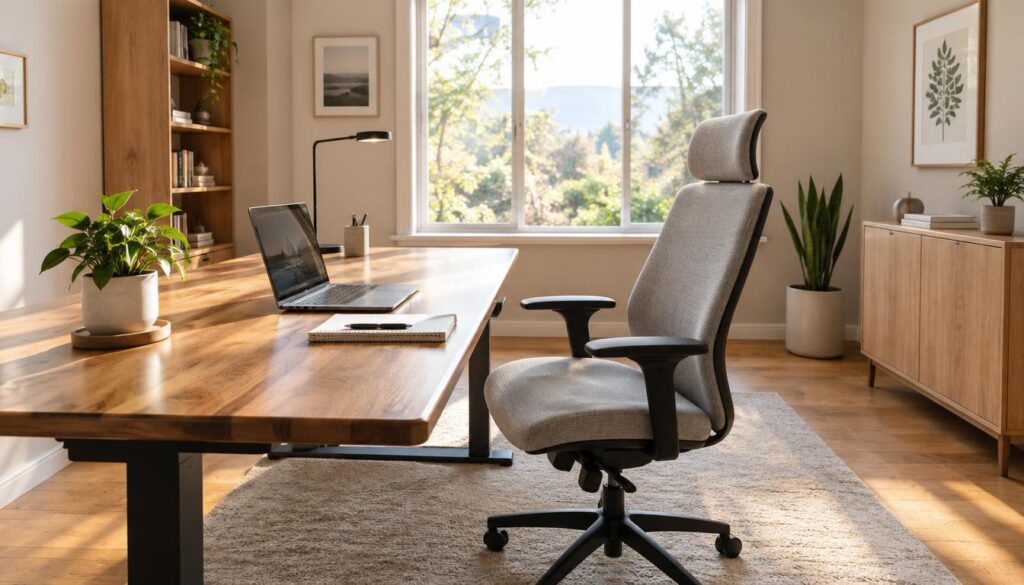

- Breathable & Ergonomic — Premium mesh promotes airflow, while integrated lumbar support helps maintain healthy posture f…
- Comfortable Seat — Thick, supportive foam cushioning provides lasting comfort during extended computer use, whether you’…
- Fully Adjustable Design — Easily adjust the seat height, tilt, and smooth 360° swivel to create your ideal sitting posit…
What Technology Should a Remote Work Setup Include?
A role that keeps several documents open may benefit from a larger display. If you mostly use one application, a laptop may be enough; match your work setup to the tasks you do most.
Choose a display arrangement for your tasks
A laptop alone can work well for writing, calls, and tasks within one window. A full-size monitor can make documents, multiple windows, or visual work easier to compare.
A portable monitor adds screen space when you travel or move between locations. Check your laptop ports and monitor compatibility before buying a hub or adapter.
| Configuration | Useful for | Advantage | Tradeoff |
|---|---|---|---|
| Laptop only | One main application | Few items to carry | Less screen space |
| Laptop plus full-size monitor | Documents and multiple windows | Large display area | Needs a fixed spot |
| Laptop plus portable monitor | Travel and flexible work | Extra screen on the move | Adds gear to carry |
Get clear audio and video for calls
Frequent calls need clear speech more than an expensive camera. A headset or headphones with a microphone can reduce room noise and help others hear you.
Place the camera at eye level, face a light source, and keep the background free of distracting items. Test sound and video before an important meeting.
Use employer-approved tools for video meetings, messaging, project management, file storage, and calendars. Zoom or Google Meet can handle meetings, while Microsoft Teams or Slack can support messages.
Choose a clear system for finding current documents instead of collecting apps. Keep a shared file location and naming method that coworkers can understand.
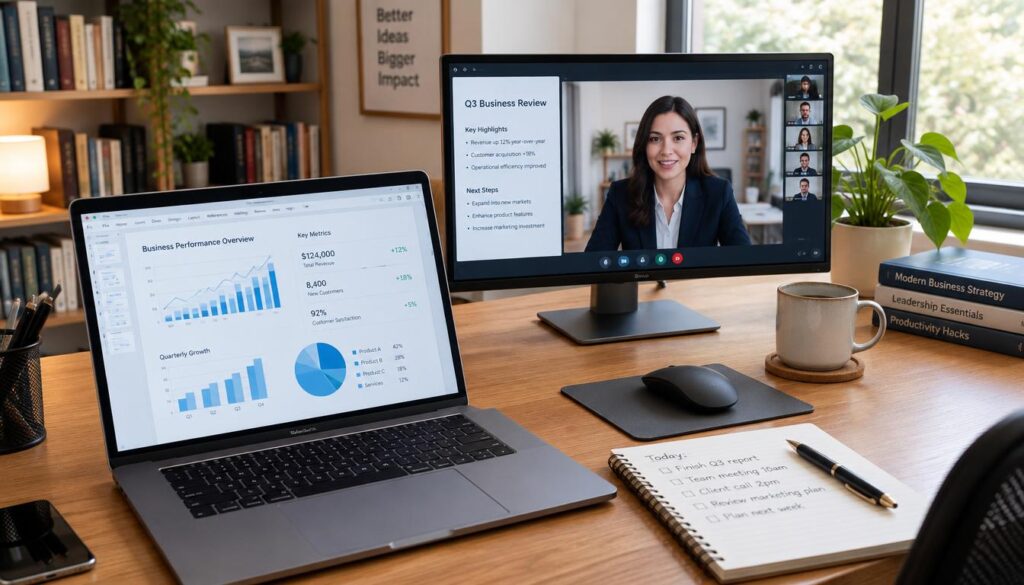
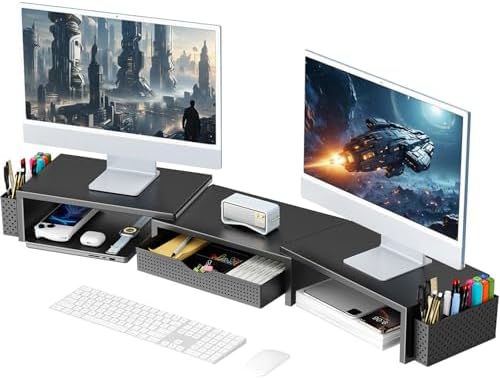
- 【Ample Storage Space】The dual monitor stand features two magnetic pen holders and a drawer, allowing you to easily organ…
- 【Work with ease】The Gianotter monitor stand for desk can adjust the monitor height to eye level, reducing neck and eye s…
- 【Maximize desktop space】By raising the monitor height, the space underneath the computer stand can be utilized for stori…
Once your devices and apps fit the work, the connection and account access must keep them usable.
How Can You Keep Your Connection Reliable and Your Work Secure?
A video call can freeze when other household devices use the network. Call quality depends on upload capacity and Wi-Fi coverage, not just your download speed.
Zoom lists 1.2 Mbps upload and download for 720p one-to-one HD video. For 1080p one-to-one video, it lists 3.8 Mbps upload and 3.0 Mbps download.
For group 720p HD calls, Zoom lists 2.6 Mbps upload and 1.8 Mbps download. These are platform-specific call requirements, not a recommended total household connection speed.
Other users, household devices, Wi-Fi coverage, and background uploads can affect performance beyond one call’s needs. Test Wi-Fi where you work, then move the router to a more open, central location if the signal is weak.
When Wi-Fi remains unreliable, consider an Ethernet connection. A wired link can avoid weak wireless coverage between your device and router.
Protect work access with strong, unique passwords and a password manager. Add two-factor authentication, secure your Wi-Fi, and follow your employer’s rules for VPN use.
Keep work documents separate from personal files so you can find the right version and follow workplace rules. These simple tech habits support a steady connection and safer access to work devices.
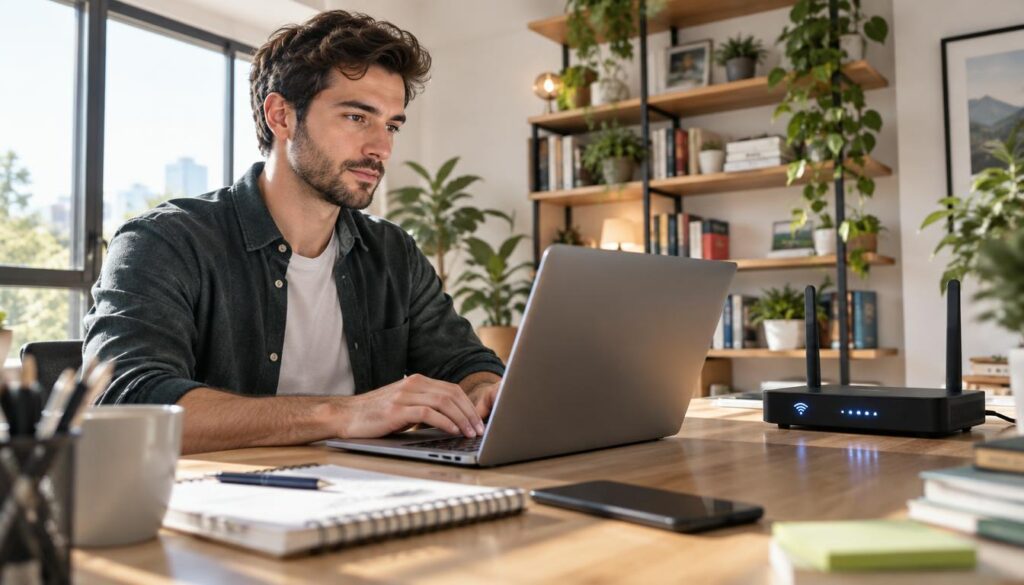

- DUAL-BAND WIFI 6 ROUTER: Wi-Fi 6(802.11ax) technology achieves faster speeds, greater capacity and reduced network conge…
- AX1800: Enjoy smoother and more stable streaming, gaming, downloading with 1.8 Gbps total bandwidth (up to 1200 Mbps on …
- CONNECT MORE DEVICES: Wi-Fi 6 technology communicates more data to more devices simultaneously using revolutionary OFDMA…
Reliable access helps you work, but a separate office is not always available. Your location may need to change with the space you have.
How Can You Adapt Your Workspace to Different Spaces?
Someone sharing a home may switch between a desk and a kitchen table as rooms become busy. One setup cannot fit every space, so make each work location easy to use and clear away.
Work in a dedicated or shared home space
A door can reduce interruptions, while a dedicated corner can mark a work boundary without a separate room. Setting up a home office for remote work does not require an entire room.
In a bedroom, keep work gear together and put it away when the day ends. In a shared room, agree on quiet times and store supplies in one bin.
A dining table can serve as a temporary desk, but clear it after work so meals still have their own place. Avoid making the bed your regular work surface.
Build a portable or hybrid setup
A portable remote work setup can include a laptop, charger, stand, mouse, headphones, adapter, and backup internet plan. Pack only what supports your usual tasks.
For a hybrid work setup, choose gear that travels easily or keep a second set at each location. Coworking spaces and public libraries can offer alternatives to a private home office.
Access and quiet depend on the location, and some shared spaces may not suit private calls. Check the work rules and conditions before settling in.
| Setting | Core arrangement | Useful addition | Main constraint |
|---|---|---|---|
| Dedicated room | Desk behind a door | Storage for work gear | Room availability |
| Small or shared home | Corner or clear table | Storage bin | Noise and shared use |
| Coworking or travel | Laptop at shared desk | Headphones | Access and privacy |
| Hybrid home-and-office | Work at two locations | Portable adapter | Gear transport |
Once you have a workable place, a few habits can help you focus there.
How Can You Make the Workday More Focused and Sustainable?
A day that starts with scattered messages and no clear priority can quickly feel unfocused. Simple routines help you direct your attention and keep work from taking over the rest of life.
Set boundaries around the workday
Use a clear start and finish ritual, such as reviewing your calendar before opening messages and closing work tools at a set time. Calendar blocks can protect focus time for tasks that need steady attention.
Take breaks away from the screen, and keep work documents in a designated place. Working from bed can blur the line between rest and work, so keep it for temporary situations.
- Review your priorities and calendar at the start of the day.
- Protect one focus block for a task that needs your attention.
- Take a short movement break away from the screen.
- Share a final update and close work tools at the end.
Make communication visible and organized
Written updates, shared documents, or recorded walkthroughs can replace a meeting when people do not need a live discussion. These tools give coworkers time to review details and respond when ready.
Include context, the file location, what changed, and the next action in each update. That makes your message useful to someone who was not part of the earlier conversation.
Use a small set of work tools that your team already knows. A clear environment for messages, files, and task updates supports productivity better than adding another app without a need.
These habits can help when you work home or share space with others. They also make it easier to spot what is not working in your current work setup.
Let the friction you actually experience guide your next upgrade, rather than buying every available accessory.
How Should You Prioritize Your Next Upgrade?
If calls cause the most trouble, fix poor audio before buying a second screen. The best remote work setup depends on your frequent tasks and the limits of your space.
Choose an upgrade that removes a real barrier. A second monitor and premium equipment are not useful for every role.
First, name one recurring problem, such as discomfort, weak call audio, a poor connection, or trouble comparing documents. Then choose one change that directly addresses that problem.
Separate essentials from optional enhancements. An essential removes a real barrier to doing your job, while an enhancement adds convenience you may not need.
A second monitor can help when you compare files or keep several windows open. It is not necessary for every role, and premium gear is not automatically more useful.
Your desk and office choices should fit your budget and work needs. The cost of an office arrangement depends on location, length of use, privacy, and included amenities.
Try a small change before replacing a full home office setup. You might improve call audio, move your work location, or organize documents more clearly.
A small, targeted change is a sound first step. Pick one recurring problem from your last workday and address it.
Conclusion
The strongest remote work setup supports your actual work and is easy to maintain. Reliable access and a comfortable position form the base, while the rest should respond to your tasks and the problems you face.
Tips from other workers can give you ideas, but your job and space set the right choices. You do not need to solve every inconvenience with new equipment.
Before your next workday, notice where you lose time, focus, or comfort. Choose one persistent source of friction and make one targeted adjustment before adding more gear.
Start with the change that will help you do your work with less strain or delay. Make that one adjustment before the next workday.